Adding or Changing a Payment Method
Administrator
Payment is handled by Stripe. All Day never sees or stores your full card number — only the card brand, last 4 digits, and expiry, for display purposes.
-
1
Open Billing & Subscription
From Settings, tap into the Billing screen as an Administrator.
-
2
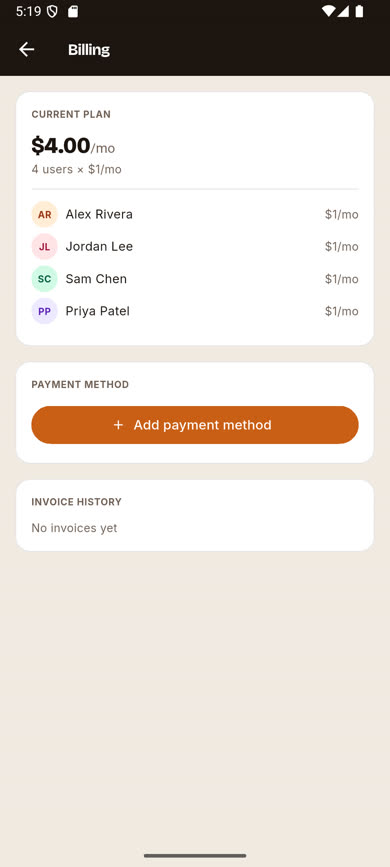
Tap Add payment method
If no card is on file, tap + Add payment method.
-
3
Enter your card in Stripe's secure form
This opens Stripe's own native payment sheet — a standard, secure card-entry form that goes directly to Stripe. All Day's own screens never handle your card number at any point.
-
4
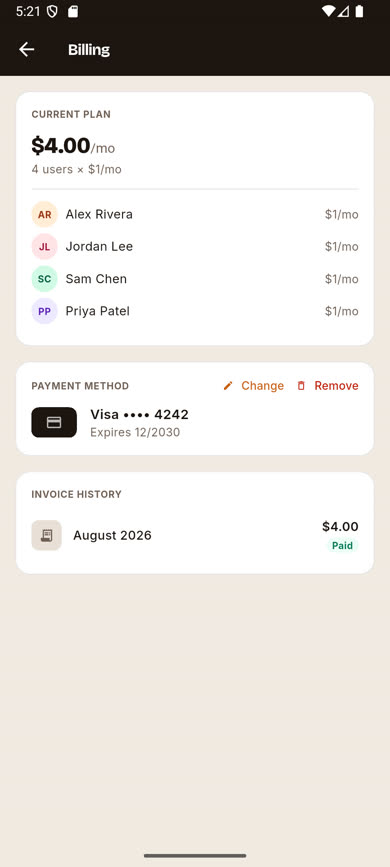
Your card is saved
Once confirmed, the Payment Method card shows the card brand and last 4 digits, with Change and Remove links.
Was this article helpful?