Deleting a Task Template
Administrator
When a recurring checklist item is no longer needed, Administrators can remove its template so it stops being offered for new tasks.
Note.Deleting a template doesn’t touch any tasks that were already created from it — only future task creation stops offering it.
-
1
Find the template
On the Templates screen, locate the template you want to remove.
-
2
Tap Delete
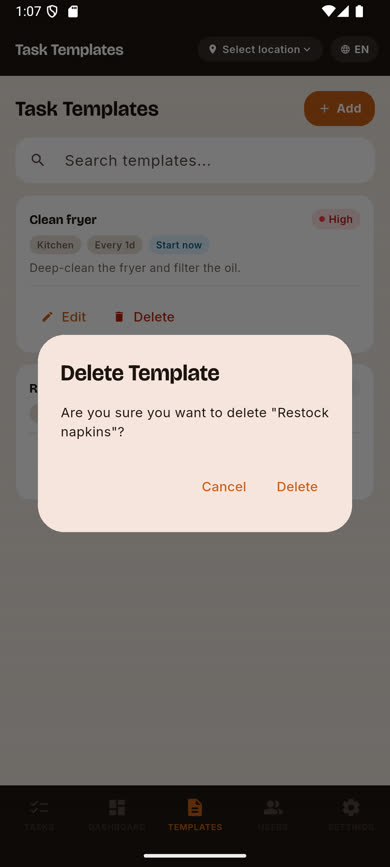
Tap the Delete link on the template’s card. A confirmation dialog appears.
-
3
Confirm the deletion
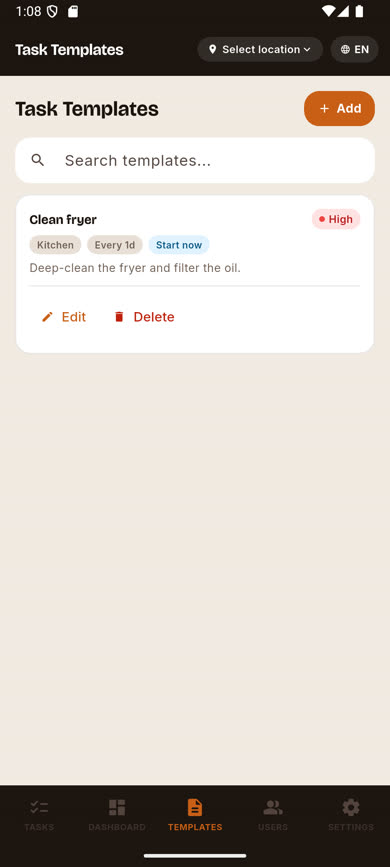
Tap Delete again to confirm. The template disappears from the list immediately.
Was this article helpful?