Viewing Task Details
All roles
Tapping any task card opens its full detail view, which shows different actions depending on your role and the task’s state.
-
1
Tap a task card
From the Tasks list, tap anywhere on a task to open Task Details.
-
2
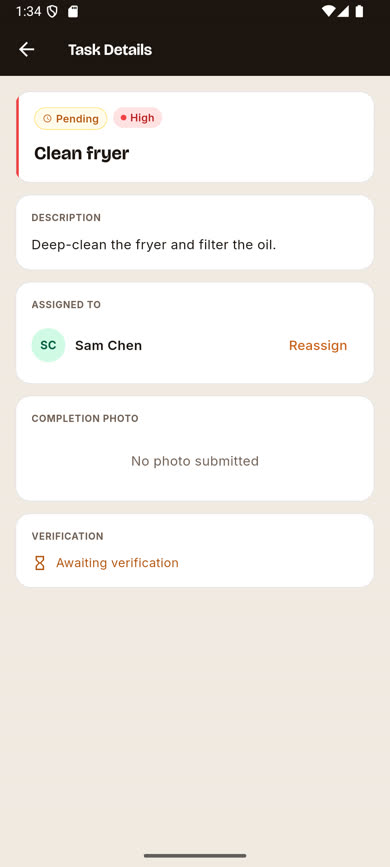
Managers and Administrators see assignment controls
You’ll see the task’s status, priority, description, who it’s assigned to (with a Reassign link), any completion photos submitted so far, and a verification section if the task requires sign-off.
-
3
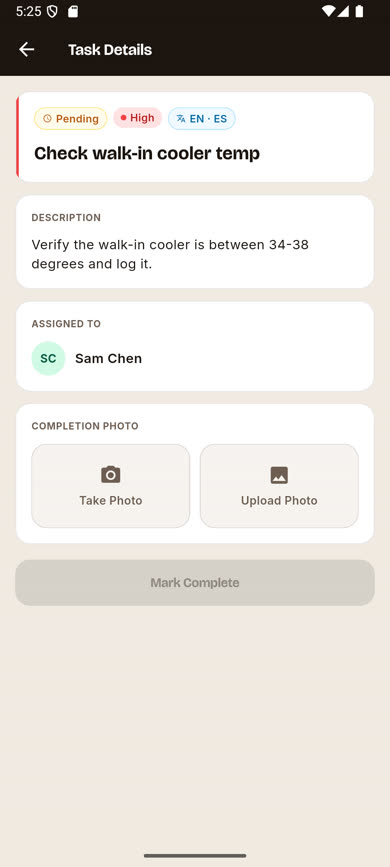
Crew see completion controls
If the task is assigned to you and still pending, you’ll see Take Photo / Upload Photo buttons and a Mark Complete button instead of a Reassign link.
Was this article helpful?