Changing Your Phone Number
All roles
Because your phone number is how you sign in, changing it requires verifying you actually own the new number first.
-
1
Open Settings and tap Change next to your phone
In the Contact Info card, tap Change next to your current phone number (or Add Phone if none is set).
-
2
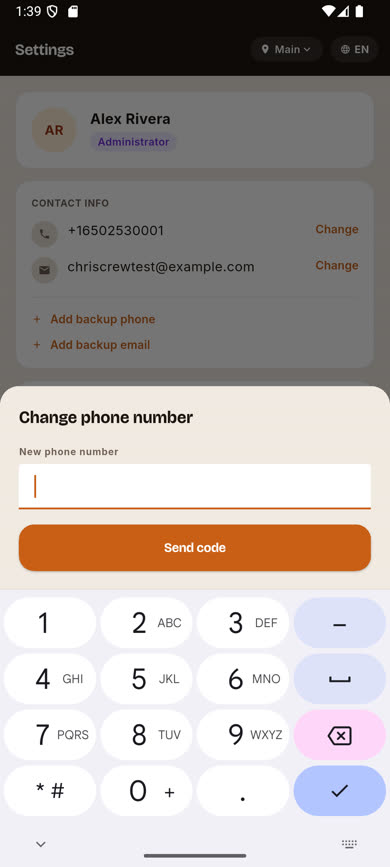
Enter your new number
Type the new phone number and tap Send code.
-
3
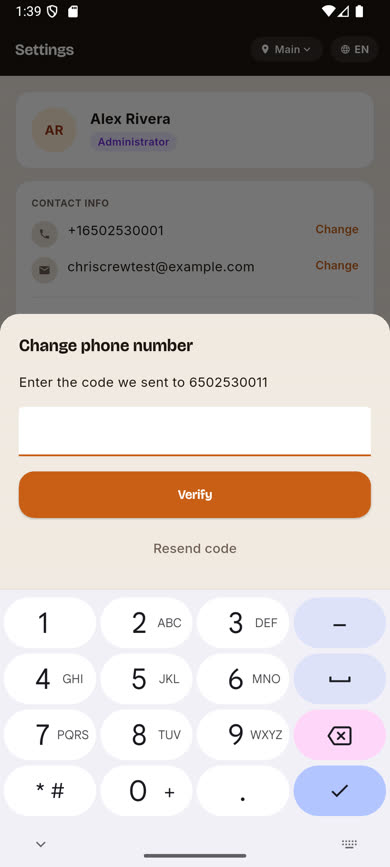
Enter the verification code
A code is sent to the new number. Enter it and tap Verify.
-
4
Your number updates immediately
From now on, you sign in with the new number.
Was this article helpful?