Creating a Task
Managers and Administrators can create a one-off task from scratch and assign it to a crew member at their location. Crew cannot create tasks.
-
1
Tap the + button on the Tasks screen
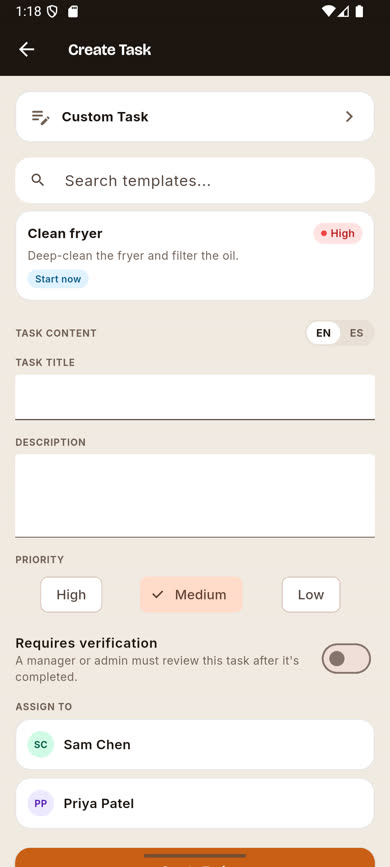
It’s the orange button in the bottom-right corner of the Tasks tab. The Create Task screen opens with Custom Task already selected.
-
2
Fill in the title and description
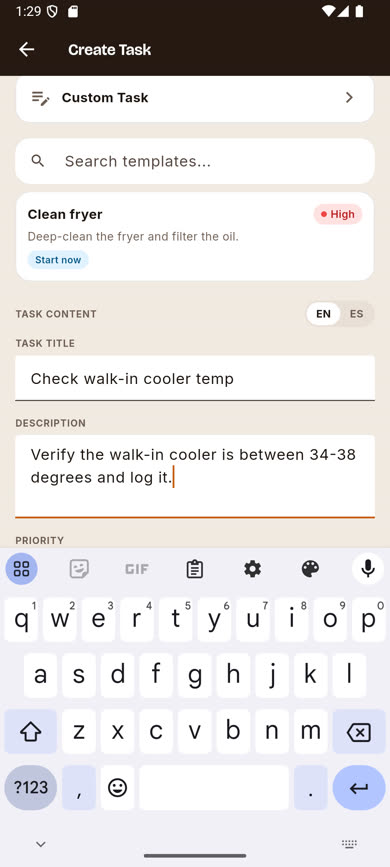
Enter a Task Title and Description in the TASK CONTENT section. You can optionally also fill in a Spanish version by switching the EN/ES tab — see Translating a task for the quickest way to do that.
-
3
Set priority and verification
Choose High, Medium, or Low priority. Toggle Requires verification on if a manager or admin needs to sign off on the completed task before it counts as done.
-
4
Assign it and save
Under ASSIGN TO, pick a crew member at your location, then tap Create Task. It appears immediately at the top of the task list, Pending, with today’s date.
Was this article helpful?