Completing a Task
Crew
Crew complete tasks by attaching a photo as proof the work was done. A task can’t be marked complete without one.
Note.If a task requires verification, it still shows as Done in your list once you complete it — a manager or admin then reviews it separately. See Verifying a completed task.
-
1
Open the task from your task list
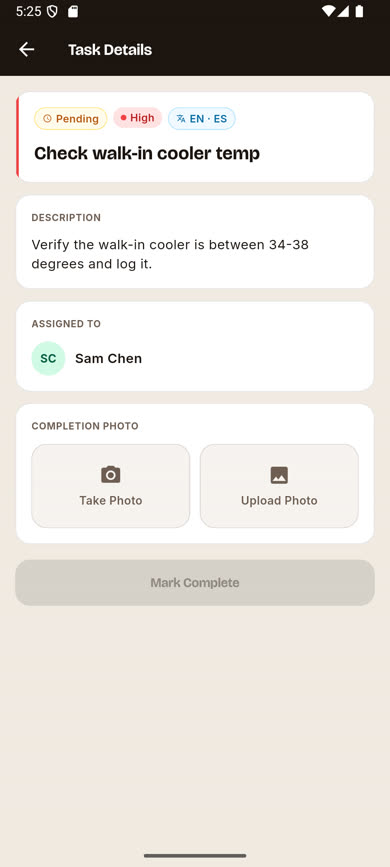
Tap the task you want to complete. If it’s currently assigned to you, you’ll see a Completion Photo section with Take Photo and Upload Photo buttons.
-
2
Add a photo
Tap Take Photo to use your camera right there, or Upload Photo to pick an existing photo from your device.
-
3
Review the photo
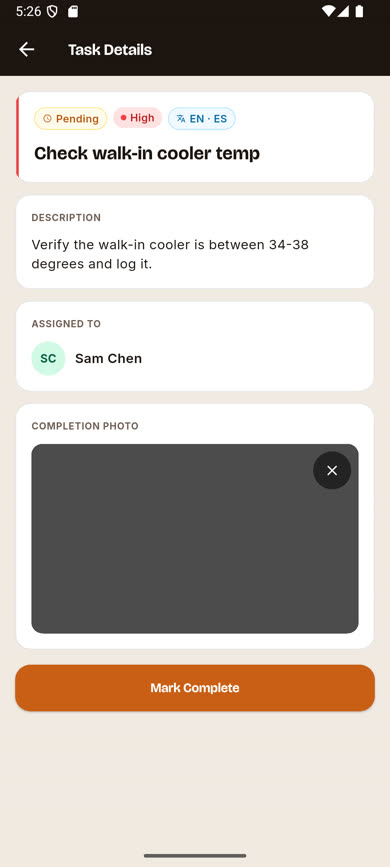
The photo appears in the Completion Photo card with an × button if you want to remove it and try again.
-
4
Tap Mark Complete
The button is disabled until a photo is attached. Once tapped, the task moves to Done in your task list.
Was this article helpful?