Creating a Task Template
Administrator
Administrators can define reusable templates for recurring tasks, so managers don’t have to type the same checklist item from scratch every time.
-
1
Tap + Add on the Templates screen
The Add button is in the top-right corner and only appears for Administrators.
-
2
Fill in the template details
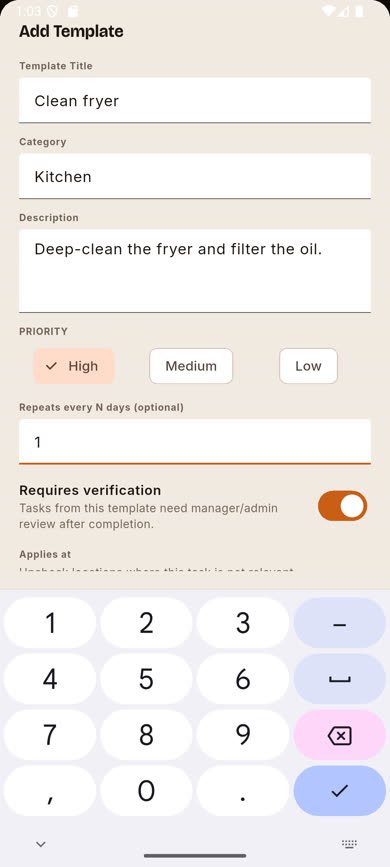
Enter a Title, optional Category, and Description. Choose a Priority (High/Medium/Low), and optionally set how often it repeats in days.
-
3
Set verification and locations
Toggle Requires verification if completions of this template should need manager/admin sign-off. Under Applies at, uncheck any locations this template shouldn’t be offered at.
-
4
Tap Save
The template appears in the list immediately and can now be picked when creating a task — see Creating a task from a template.
Was this article helpful?