Reassigning a Task
ManagerAdministrator
If a task needs to move to a different crew member mid-shift — someone called out, a task was assigned to the wrong person — Managers and Administrators can reassign it without deleting and recreating it.
Note.All Day keeps a full history of every reassignment. If a task is completed by someone other than its current assignee — for example, they were reassigned away from it while offline — the app flags that clearly rather than silently overwriting anything.
-
1
Open the task
From the task list, tap the task you want to move to a different person.
-
2
Tap Reassign
Next to the current assignee’s name in the ASSIGNED TO section, tap the orange Reassign link.
-
3
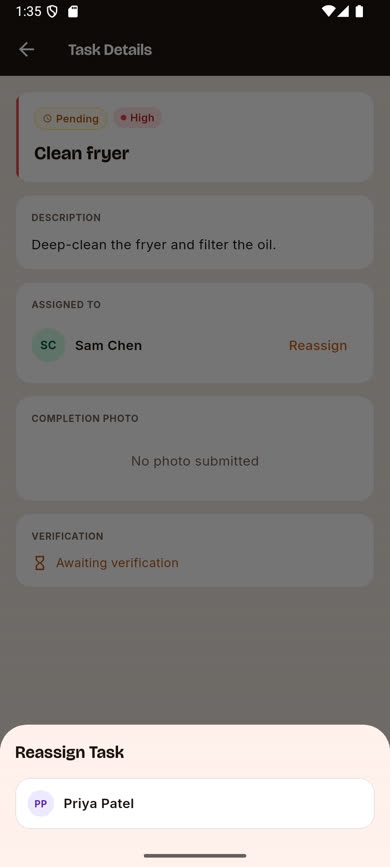
Pick the new assignee
A sheet slides up listing the other crew members at that location. Tap a name to reassign immediately — there’s no separate confirm step.
-
4
The task updates right away
The ASSIGNED TO section now shows the new person, and the task moves into their task list.
Was this article helpful?