Viewing Your Tasks
All roles
The Tasks tab is the home screen of the app. What you see there depends on your role.
-
1
Open the Tasks tab
It’s the first icon in the bottom navigation bar and is where the app opens by default.
-
2
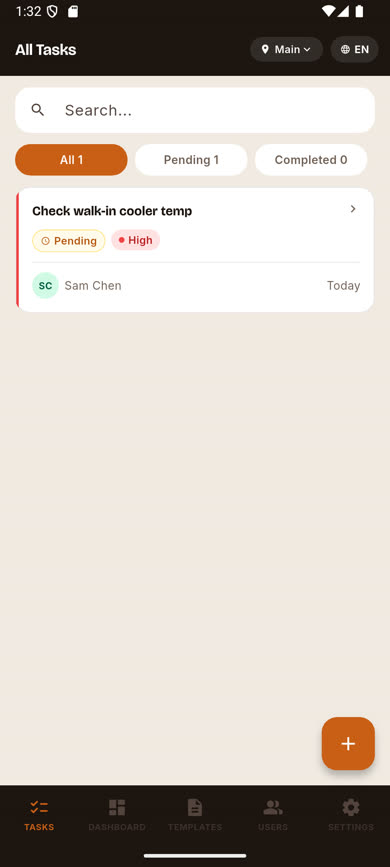
Administrators and Managers see "All Tasks"
You see every task at the location you’re currently viewing, regardless of who it’s assigned to. Each card shows the task title, its status (Pending/Done) and priority pill, who it’s assigned to, and when it was created.
-
3
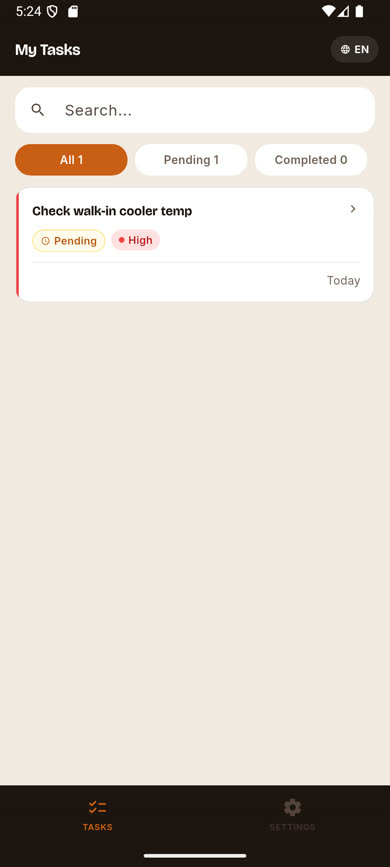
Crew see "My Tasks"
Crew members only see tasks assigned to them, at their own location. There’s no location switcher, since crew belong to a single fixed location.
-
4
Use the status tabs to filter
Tap All, Pending, or Completed above the list to narrow what’s shown; each tab shows a live count.
Was this article helpful?